Linux-native · Rust · MIT · Wayland
Draw on your screen. Any app. Live.
wayscriber is a live screen annotation and presentation tool for Linux. It is written in Rust. One keybind puts a drawing layer over the screen. You can annotate, present, zoom, capture, and then hide the layer again.
no Electron, no webview
at 120 FPS
(144/240+ configurable)
one TOML file
Measured on local hardware. Details in performance.
How it works
From install to drawing in three steps
Install the package
There are native repositories for Debian, Ubuntu and Fedora, the AUR for Arch, a Nix flake, and one-off .deb and .rpm downloads. Pick your distro ↓
Bind one key
Run the daemon. Then bind wayscriber --daemon-toggle to a global shortcut. The configurator can do both steps for you.
systemctl --user enable --now wayscriber.serviceDraw over anything
Press your key and the overlay appears with a pen, shapes, text, boards, and zoom. Press F1 for searchable, clickable Help. Press Esc to hide the overlay again.
Features
Everything it does, one keybind away
All the features below are included. There are no plugins and no accounts.
The full drawing toolkit
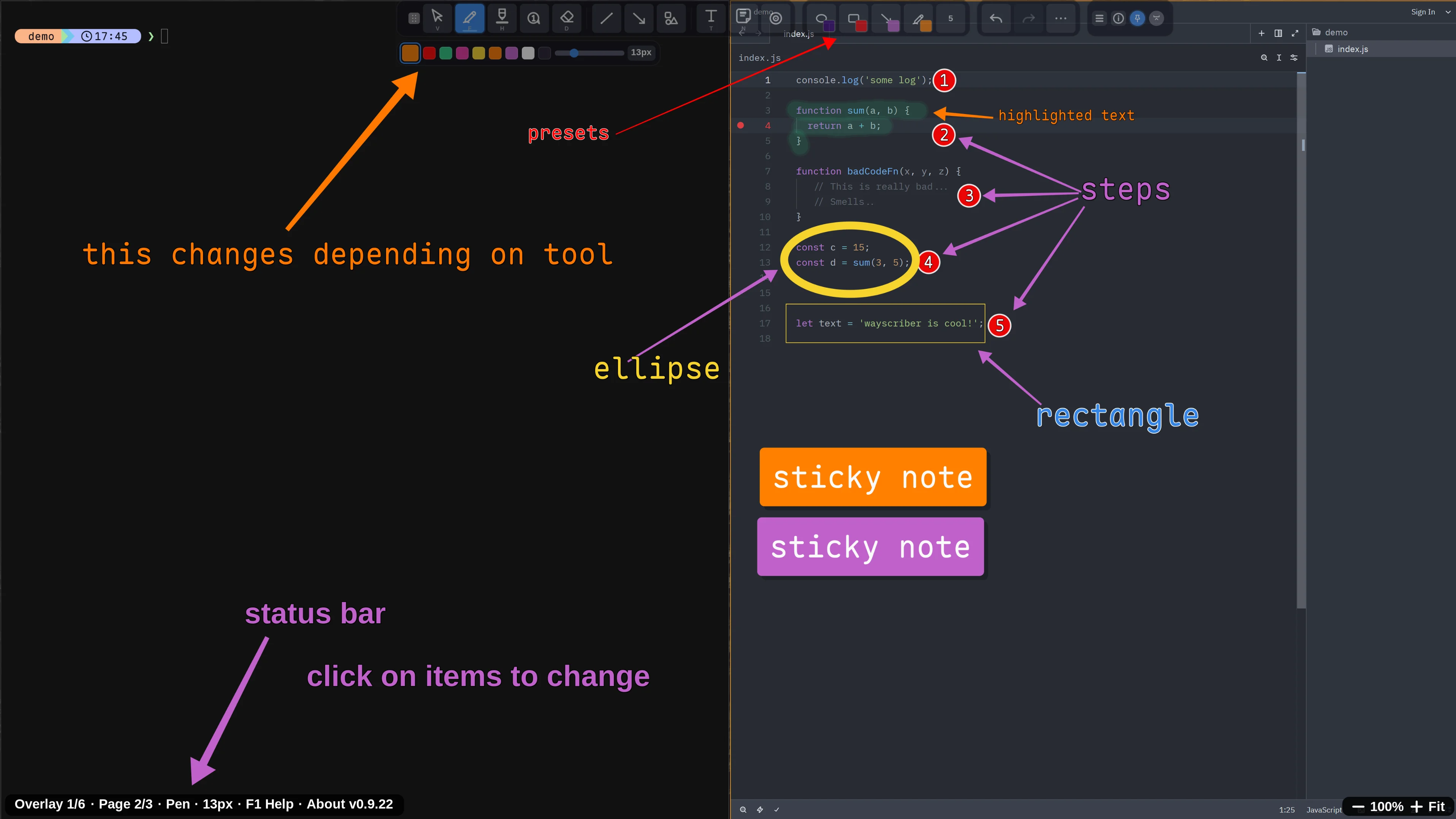
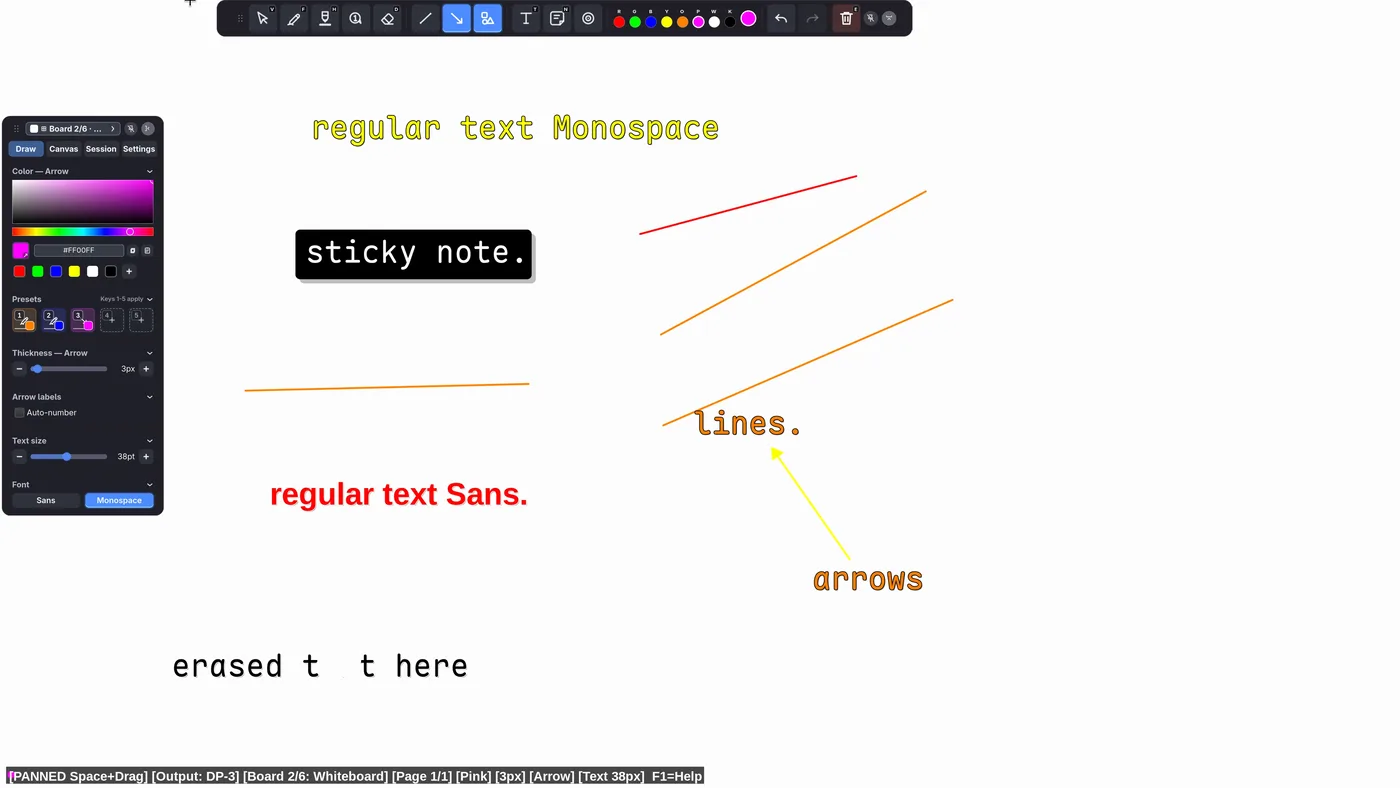
The tools include a pen, a highlighter, and an eraser. You can draw lines, rectangles, ellipses, and fillable polygons. There are also arrows with auto-numbered labels, step markers, and blur. Multiline text, sticky notes, and a screen eyedropper with a magnified pixel loupe are included. Undo and redo work on all of them.
Command palette
The palette does a fuzzy search of the actions, with icons and category headers. You can reopen a recent item, save a preset slot, or edit a shortcut in place. Ctrl+K or Ctrl+Shift+P opens it.
Radial menu at the cursor
The menu is a fixed eight-way compass with tool glyphs, recent colors, and an outer size ring. Hold Middle-click. Move the pointer to a tool. Then release the button.
Boards & pages
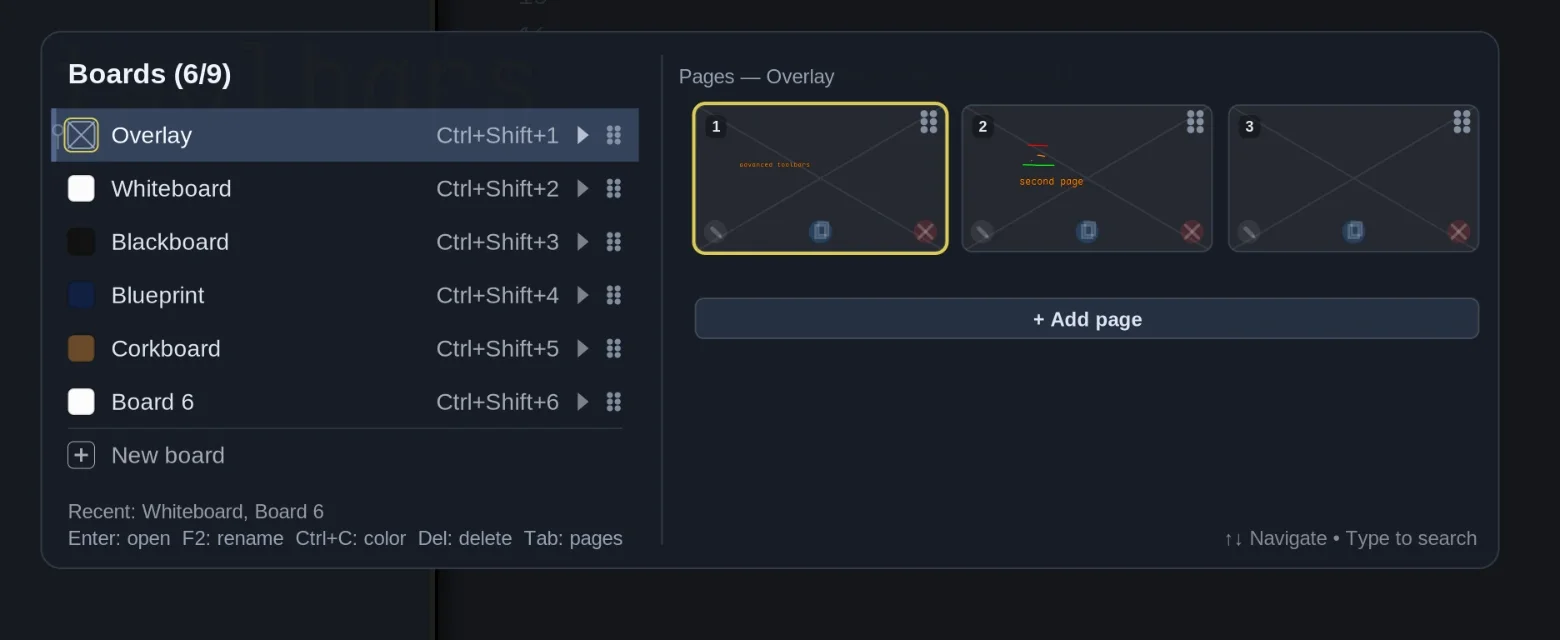
The backgrounds are a transparent overlay, a whiteboard, a blackboard, blueprint, or corkboard. Every board keeps separate pages with auto-contrast pens. Ctrl+Shift+1..9 goes to a jump slot. Space+drag pans a solid board.
One contextual toolbar
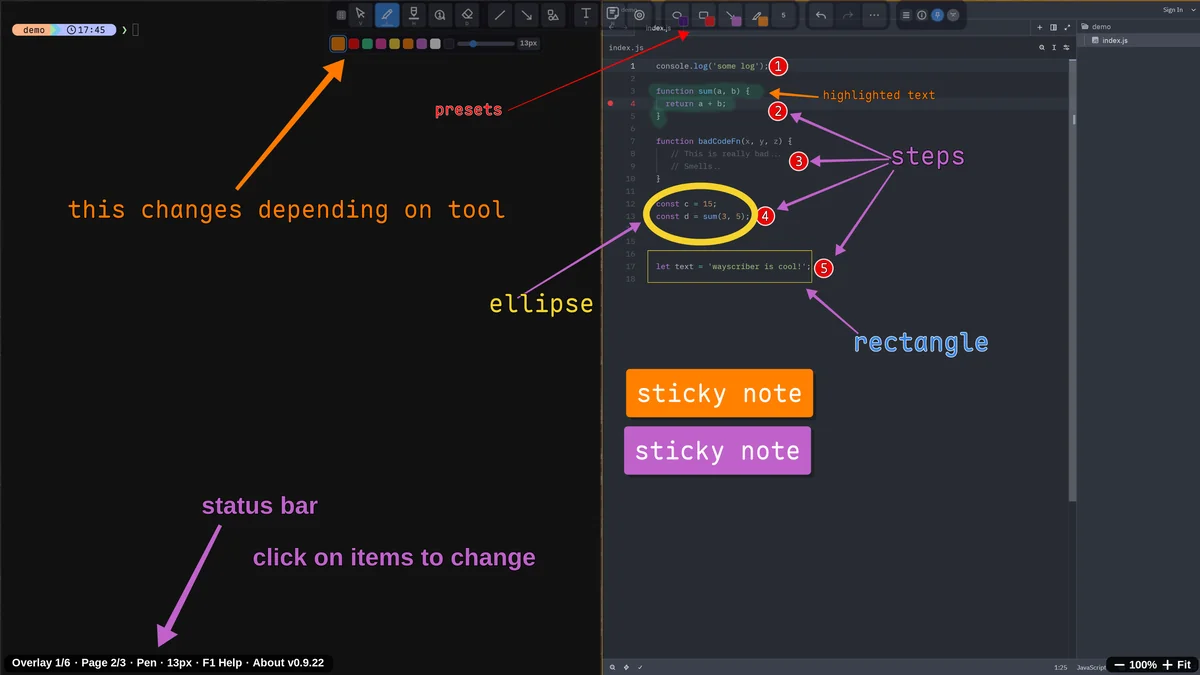
Tools, colors, presets, board and page controls, zoom, undo, and overflow are in one floating strip. The control row changes with the active tool. Pen size, text options, fill, and shape controls stay near you, with no side panel.
Sessions that survive
Boards, undo history, and tool state stay after a restart by default, for each monitor. With named .wayscriber-session files, you can keep a separate workspace for each project or talk.
wayscriber compresses each session and makes a backup. After a crash, it recovers the session automatically.
Zoom & presenter mode
ZoomIt-style zoom uses Ctrl+Alt+scroll, and it includes zoom lock and pan. The chip in the bottom-right corner shows the live percent, and it has zoom-out, zoom-in, Fit, and Lock. More controls are in overflow → Canvas.
OCR copy text
Select text on the screen and run OCR. Then copy the result. The overlay stays open.
Light passthrough
You can click through the overlay while your drawings stay visible. Then you can work under your notes. Light passthrough needs a layer-shell compositor.
Input HUD
Ctrl+Shift+K shows your keystrokes and clicks on the screen, for demos and screencasts. Held keys collapse into a ×N counter. Optional system-wide capture also reports the input that goes to the application below.
Capture & PDF export
You can capture the full screen, a window, or a region to the clipboard or to a PNG file. You can export boards as multi-page PDF files. The live desktop can show behind transparent pages.
Select, move, paste
You can move, duplicate, restack, and edit the properties of an object. You can also paste PNG and JPEG images from the clipboard onto the canvas.
Tablet, pen & touch
Native tablet support (zwp_tablet_v2) with pressure is enabled by default. A mouse and a touchscreen also work.
Multi-monitor
A shortcut moves the overlay between outputs. The toolbars go to the active display. You can also keep a separate session for each output.
Make it yours
There are about 130 rebindable actions, dark and light chrome, reduced motion, quick colors, and presets 1–5. You can edit the commented TOML file by hand, or use the GUI configurator.
Fast by default
Vsync is off, with a 120 FPS cap for low-latency ink. If your display supports a higher rate, increase the cap to 144 FPS or 240 FPS. The numbers ↓
Demos
See it in action
These clips are short. The larger videos load only when you press play.
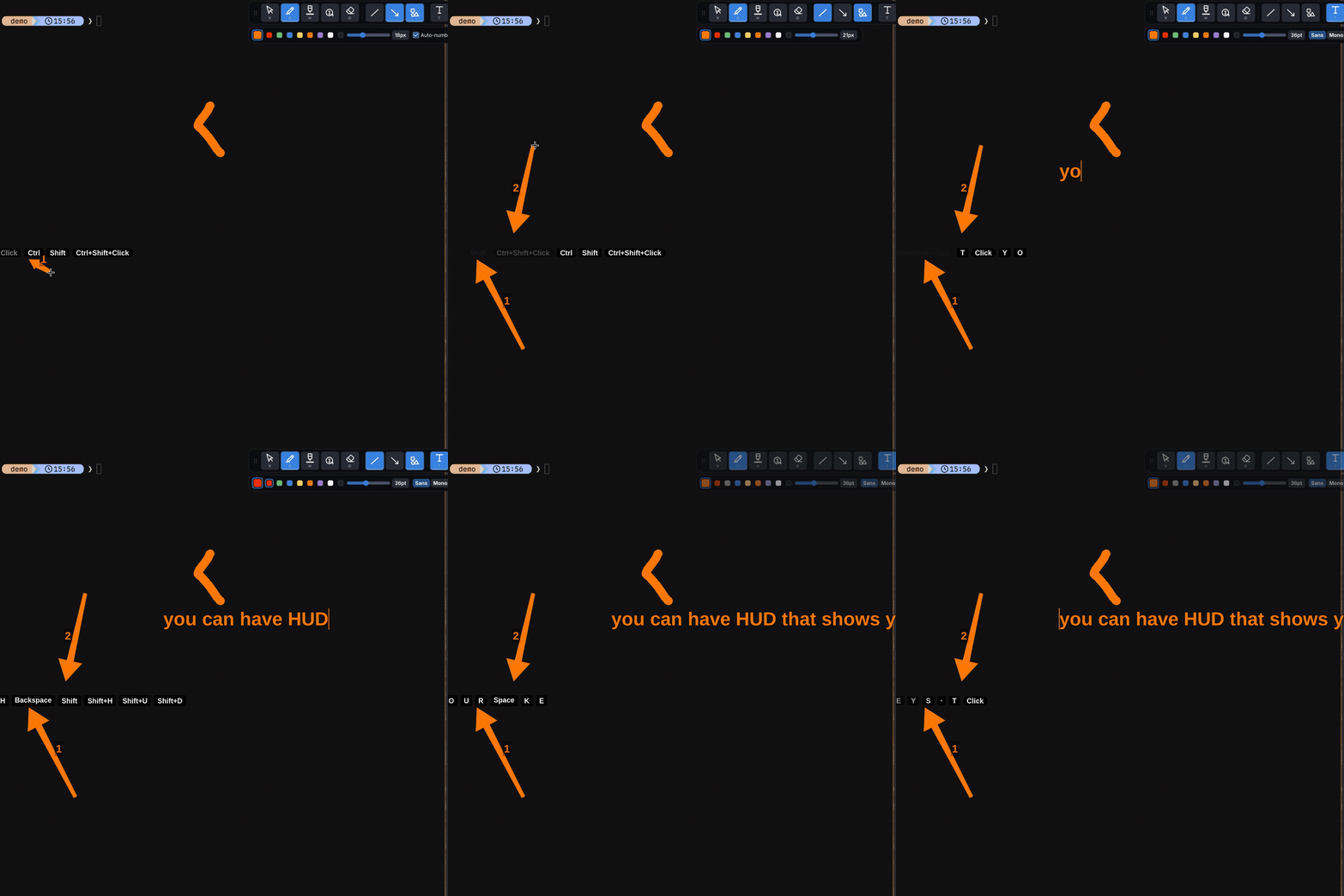
Show your keystrokes and clicks while you present. Press Ctrl+Shift+K for the Input HUD. You can select overlay-only capture or system-wide capture.
Move through the pages on a board. Presets 1–5 change the tool, the color, and the size with one keystroke.
This clip shows the right-click context menu, the selection tool, and a change between boards.
Paste an image from the clipboard. Then click through the overlay in light passthrough mode. The notes stay visible.
Use Space+drag to pan a solid board. The canvas is larger than the screen.
Multiline text. You can place it, edit it, move it, and change its style.
Sticky notes have editable text. Press N, click, and type.
ZoomIt-style magnification. Use Ctrl+Alt+scroll to zoom. You can also lock the zoom and pan.
The complete walkthrough. It shows tools, boards, zoom, and capture in one take.
Screenshots
A closer look
Click any image to enlarge.
Performance
Ink that keeps up with your hand
Native Wayland, native code. A Rust binary draws directly to layer-shell surfaces. There is no Electron, no webview, and no compositor trick.
Low latency by default. Vsync is off, with a 120 FPS cap. In local input-to-commit measurements, p95 and p99 stayed near 8–9 ms during continuous drawing.
Always warm. wayscriber runs as a daemon. The overlay opens quickly, with no cold start and no splash screen.
Tunable. If you want tear-free rendering or quieter fans, turn vsync on. If you have a 240 Hz display, increase the cap.
This latency is the time from the input sample to the Wayland surface commit. It is not end-to-end display latency. To measure it yourself, set WAYSCRIBER_PERF_LOG=1.
# config.toml
[performance]
buffer_count = 3          # balanced buffering
enable_vsync = false      # lower drawing latency
max_fps_no_vsync = 240    # for a fast display + GPU
ui_animation_fps = 60 # smoother UI effectsbuffer_count = 3 is the balanced default. More buffers use more memory, and they do not increase the FPS cap. This 240/60 example is for high-refresh systems. The defaults are 120 FPS for drawing and 30 FPS for UI effects.
Compatibility
Works with your compositor
All the features work on a compositor that supports wlr-layer-shell. This includes light passthrough.
GNOME uses an xdg-fullscreen fallback. The normal overlay works, and screen freeze works through the portal. Light passthrough is not possible on standard GNOME Wayland.
wayscriber supports Wayland only and Wayland-native by design.
wayscriber is tested on Ubuntu 25.10, Fedora 43 (KDE and GNOME), Debian 13.2, CachyOS, and Arch with Hyprland and Niri.
Install
Install from your package manager
Native repositories give you automatic updates where possible. The docs have the full details.
sudo install -d /usr/share/keyrings
curl -fsSL https://wayscriber.com/apt/WAYSCRIBER-GPG-KEY.asc | sudo gpg --dearmor -o /usr/share/keyrings/wayscriber.gpg
echo "deb [signed-by=/usr/share/keyrings/wayscriber.gpg] https://wayscriber.com/apt stable main" | sudo tee /etc/apt/sources.list.d/wayscriber.list
sudo apt update
sudo apt install wayscriber wayscriber v0.9.23+ supports Ubuntu 24.04+, Linux Mint 22+, Pop!_OS 24.04+, and Debian 13 (trixie)+. The release package includes its GTK4 layer-shell integration. Thus you do not need a separate libgtk4-layer-shell0 package. For Pop!_OS 22.04, use the GTK-less source build.
More options: one-off .deb, configurator
One-off .deb (no auto-updates)
wget -O wayscriber-amd64.deb https://github.com/devmobasa/wayscriber/releases/latest/download/wayscriber-amd64.deb
sudo apt install ./wayscriber-amd64.debOptional GUI configurator
sudo apt install wayscriber-configuratorcat <<'EOF' | sudo tee /etc/yum.repos.d/wayscriber.repo
[wayscriber]
name=Wayscriber Repo
baseurl=https://wayscriber.com/rpm
enabled=1
gpgcheck=1
repo_gpgcheck=1
gpgkey=https://wayscriber.com/rpm/RPM-GPG-KEY-wayscriber.asc
EOF
sudo dnf clean all
sudo dnf install wayscriberThis applies to Fedora, RHEL, Rocky, Alma, Nobara, and related distributions.
More options: one-off .rpm, configurator
One-off .rpm (no auto-updates)
wget -O wayscriber-x86_64.rpm https://github.com/devmobasa/wayscriber/releases/latest/download/wayscriber-x86_64.rpm
sudo dnf install ./wayscriber-x86_64.rpmOptional GUI configurator
sudo dnf install wayscriber-configuratoryay -S wayscriber-bin # prebuilt; or: paru -S wayscriber-bin There are three AUR packages: wayscriber-bin (prebuilt), wayscriber (built from source), and wayscriber-configurator.
More options: direct installer, source build, configurator
Direct release installer (no AUR)
curl -fsSL https://wayscriber.com/arch-install.sh -o arch-install.sh
sh arch-install.sh --dry-run
sh arch-install.sh The installer puts the latest stable x86_64 release under /usr/local. First it does checksum, manifest, dependency, and package-conflict tests. It stops if it finds another copy under /usr or ~/.local/bin. It also stops if a user unit or drop-in has an ExecStart that is not /usr/local/bin/wayscriber. To continue, pass --replace-other. The installer restarts a user service that is already active, unless you pass --no-restart.
Before you move to the AUR, run the installer with --uninstall. Then the direct copy does not keep priority. If an unmanaged copy stays in /usr, also pass --remove-unmanaged-usr. For more information, read the updating guide.
Build from source via AUR
yay -S wayscriber # or: paru -S wayscriberOptional GUI configurator
yay -S wayscriber-configurator # or: paru -S wayscriber-configuratorenvironment.systemPackages = with pkgs; [ wayscriber grim slurp wl-clipboard ];nix run nixpkgs#wayscriber -- --active # or just try it, no install Then run sudo nixos-rebuild switch. The nixpkgs-unstable channel tracks the releases. A stable channel keeps the version from its release date. The nixpkgs build installs the binary only. For the systemd user service and the configurator, use the project flake below.
More options: latest release, configurator, daemon service, non-NixOS Nix
Latest release, configurator and daemon service (project flake)
1 · Add the input to your flake.nix:
inputs.wayscriber.url = "github:devmobasa/wayscriber?ref=RELEASE_TAG";2 · Make it available in outputs:
outputs = { nixpkgs, wayscriber, ... }: {
  # Your existing outputs...
}; 3 · Add this module to the modules list of your nixosSystem:
({ pkgs, ... }:

  let
    wayscriberPackages =
      wayscriber.packages.${pkgs.stdenv.hostPlatform.system};
  in
  {
    environment.systemPackages = [
      wayscriberPackages.wayscriber
      wayscriberPackages.wayscriber-configurator
    ];

    # Required before `systemctl --user enable --now wayscriber.service` works.
    systemd.packages = [ wayscriberPackages.wayscriber ];
  }
) Replace RELEASE_TAG with a published tag from the latest release. To move to a newer release, change the tag and run nix flake update wayscriber.
Home Manager
home.packages = [ pkgs.wayscriber ];Nix on another distro (profile install)
nix profile install nixpkgs#wayscriber # upgrade with: nix profile upgrade wayscriberThen: enable the daemon and bind a key
The deb, rpm, and AUR packages include a systemd user service, the tray icon, and the capture helpers (grim, slurp, wl-clipboard). The direct Arch installer makes sure that these helpers are present. It installs the service under /usr/local. On NixOS, you declare the helpers and the service in your configuration. Read the Nix tab above.
systemctl --user enable --now wayscriber.serviceo.bind("SUPER + D", "Toggle Wayscriber", "wayscriber --daemon-toggle")Traditional Hyprland, GNOME / KDE shortcuts, one-shot mode, build from source
Traditional Hyprland config
bind = SUPER, D, exec, wayscriber --daemon-toggleGNOME
Go to Settings → Keyboard → Custom Shortcuts. Add wayscriber --daemon-toggle. On Ubuntu GNOME, use Super+G, because Super+D is frequently in use.
KDE Plasma
Go to Settings → Keyboard → Shortcuts. Add a Command or Script that runs wayscriber --daemon-toggle. For example, use Meta+Shift+D.
No-CLI path
Open wayscriber-configurator and go to the Daemon tab. Select Install/Update Service, then Enable + Start. Then select Apply Shortcut. The configurator writes the GNOME custom shortcut or the KDE portal global shortcut for you.
One-shot mode (no daemon)
wayscriber --active                    # overlay now
wayscriber --active --mode whiteboard  # straight to a board
wayscriber --freeze # start with screen frozenBuild from source
You need Rust 1.95 or a newer version, and a C toolchain. On Debian 13+ and Ubuntu 25.04+ (this includes Ubuntu 26.04 LTS), the default build dependencies are pkg-config, libgtk-4-dev, and libgtk4-layer-shell-dev. Read the source-build instructions for the complete commands for each distribution. They also give the GTK-less build for older distributions such as Pop!_OS 22.04.
Controls
Muscle memory in a dozen shortcuts
All these keys are rebindable. These are the defaults.
More defaults: boards, pages, selection
| Boards | Whiteboard Ctrl+W · Blackboard Ctrl+B · back to transparent Ctrl+Shift+T · picker Ctrl+Shift+B · slots Ctrl+Shift+1..9 |
|---|---|
| Pages | Prev/next Ctrl+Alt+←/→ · new Ctrl+Alt+N · duplicate Ctrl+Alt+D |
| Selection | Duplicate Ctrl+D · copy/paste Ctrl+Alt+C/Ctrl+Alt+V · restack ]/[ · properties Ctrl+Alt+P |
| Presenting | Click highlight Ctrl+Shift+H · input HUD Ctrl+Shift+K · freeze Ctrl+Shift+F · light passthrough F6 · radial menu Middle-click (hold) |
| Shapes | Ellipse Tab+drag · eraser D · clear all E · highlight brush Ctrl+Alt+H |
F6 works only when the overlay has focus. When passthrough is active, wayscriber can stop receiving that key. For a reliable exit, bind a global compositor shortcut to wayscriber --light-toggle.
The default key for the screen eyedropper is I. It is also available from both color interfaces and from Ctrl+K. If you prefer another key, change keybindings.colors.pick_screen_color in the configuration file or in the configurator.
Open the top-strip overflow and choose Canvas.... This pane has boards, pages, advanced history, zoom, and Step Undo/Redo controls. To save a slot without its shortcut, search for Save preset in the command palette.
For the complete cheat sheet, press F1 in the application. You can also read the docs.
Configurator
A GUI for the config file
- The GUI is native GTK4 and libadwaita, built with Relm4. It edits the default values in
config.toml. It also does validation and makes automatic backups. - Runtime UI preferences stay separate. You can examine, recover, or reset them from the Settings popover in the overlay.
- You can select dark or light chrome, reduced motion, and the contextual-pill or legacy-panel layout. You can also set the top-strip display, the item visibility, and the optional ink-preview cursor.
- It installs and manages the daemon service. It applies global shortcuts on GNOME and KDE. For Hyprland, it supplies a ready-made include file for the light-passthrough binds.
- It manages sessions. You can rename, duplicate, move, or clear the saved boards and tool state.
- To open the configurator, press F11 in the overlay or run
wayscriber-configurator. It is a separate optional package.
Ethos
“wayscriber is shared as a gift exchange, not a contract.”
wayscriber is free, MIT-licensed, and in active development. There are no guaranteed timelines and no guaranteed support. Contributions are welcome, especially compositor tests, multi-monitor reports, and new drawing tools. Read the full ethos · Contributing guide